
Documentationv2.0Start Free
Product
Library
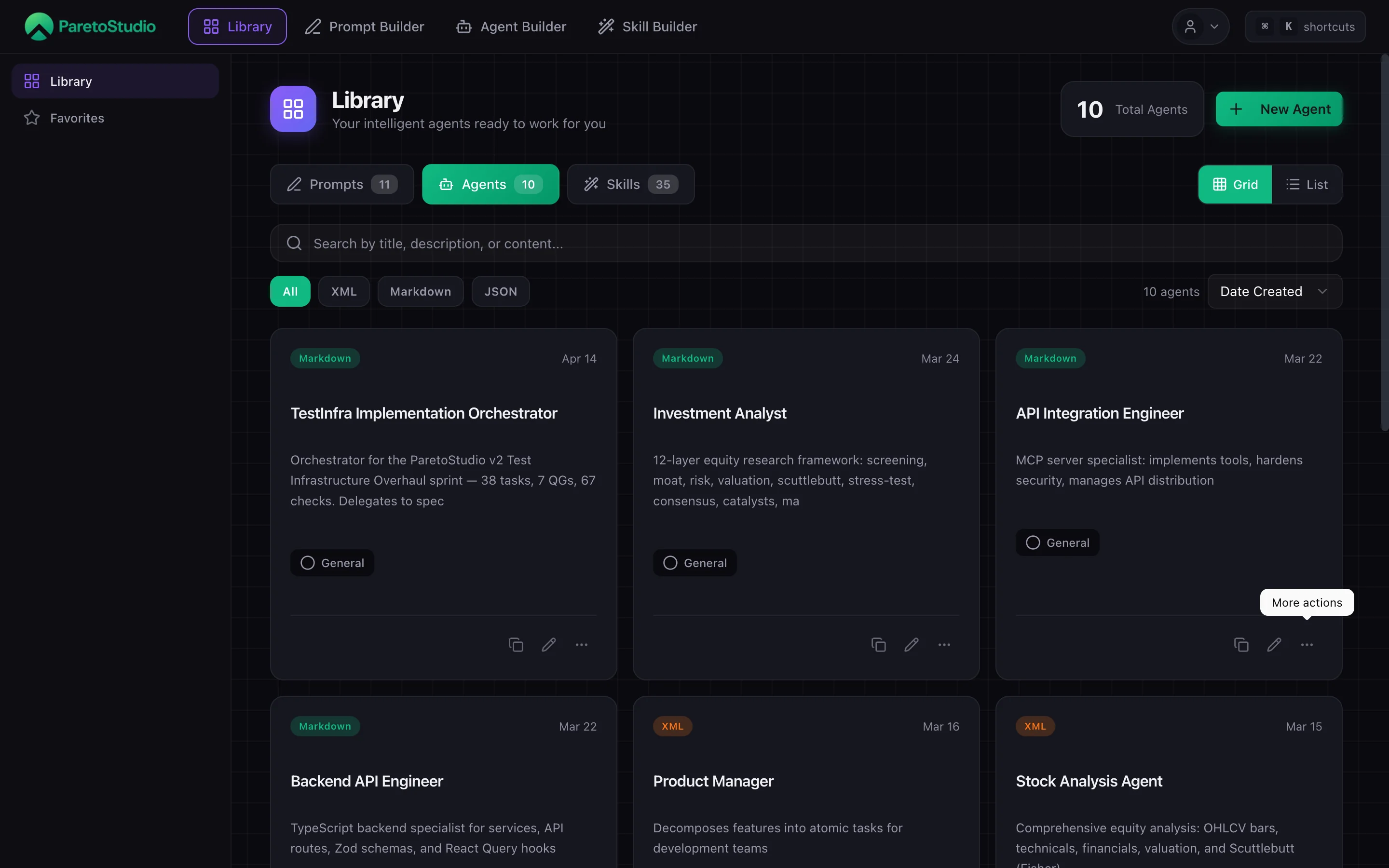
The Library is the single home for everything you build — prompts, agents, and skills. Save an item once and use it anywhere: the web app, the Chrome Extension in your browser, or the MCP server in your IDE. The more you build, the more it compounds.

What lives in the Library
Three content types share one home. Each one is created in its matching builder and lands in the Library automatically.
Prompts
Structured prompts with Role Assignment, Context Setting, Task Specification, and Response Format. Saved as XML, Markdown, or JSON.
Prompt Builder →Agents
Persistent identities with Behavioral Rules, Security & Compliance, and Operations & Tools. Drop into Claude Code or Cursor via MCP.
Agent Builder →Skills
Focused capabilities with precise Triggers and explicit Guardrails. Written as SKILL.md files, installed into your project.
Skill Builder →Organize your library
The Library is structured around three axes: the content type (the tab you are on), the ontology category you picked during creation, and the actions you can take on any item.
| Control | What it does | Available on |
|---|---|---|
| Tabs | Switch between Prompts, Agents, and Skills. The active type is marked in green, and every tab shows a live item count. | All |
| Views | Toggle between grid (cards) and list (dense rows). | All |
| Category filter | Narrow prompts by the category assigned in the builder. The filter stays compact until you need it. | Prompts |
| Favorites | Star items you use daily. Filter to see only favorites. | Prompts |
| Drafts | Show work that is still being autosaved or has not been made live yet. | All |
| Sort | Order by Date Created, Last Updated, Most Used, or Title. | All |
| Actions | Preview, Edit (reopens the builder), Copy, Duplicate, Favorite, Delete. | All (Favorite: prompts only) |
Edit reopens the builder
Clicking Edit on any item reopens the matching wizard with every field pre-filled. You iterate on structure, not just on text. ParetoStudio reuses the access information already loaded by the Library, so the matching builder opens without repeating the same account check.
Version history
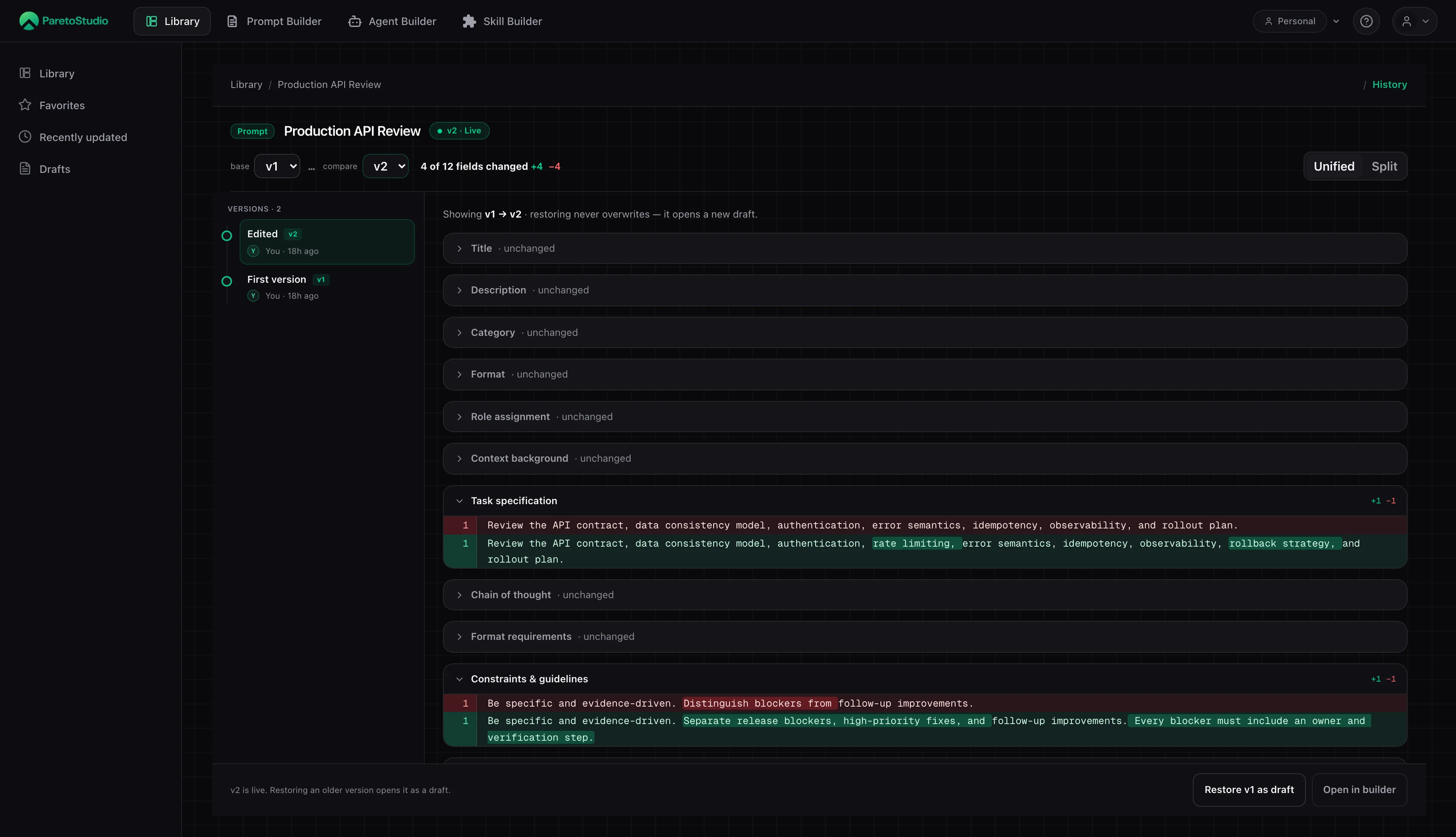
Every saved edit becomes a version you can compare field by field. The history view separates additions and removals, keeps unchanged fields collapsible, and restores an older version as a new draft so live work is never overwritten.
Access the library
Your library is the same everywhere. Pick the surface that matches where you work — you do not have to choose only one.
Web app
The full Library lives at /library. Create, edit, organize, and delete items in one place.
Chrome Extension
A searchable popup available from ChatGPT, Claude, or any supported chat. Press the shortcut, search, and inject in seconds.
Install the Extension →MCP Server
Claude Desktop, Cursor, or Claude Code talks to your library in natural language. Search, install, and (Pro) create from the IDE.
Set up the MCP Server →Typical flow
Build once in the web app
Open the matching builder, work through the wizard, and save. The item lands in your Library with the right category, format, and tags.
Use it in the browser
On Claude or ChatGPT, hit Cmd+Shift+P, pick the item, and it lands in the chat input. No tab switching.
Use it in your IDE
In Cursor or Claude Code, ask your AI to search your library or install an agent. The MCP server handles the download and the file layout.
Search and filters
Search runs across the title, description, and full content of every item on the active tab. Combine with filters to narrow fast.
| Filter | Values | Available on |
|---|---|---|
| Format | XML, Markdown, JSON | Prompts, Agents |
| Category | Any of 18 ontology categories (Tech & Engineering, Product & Design, Marketing, …) | Prompts |
| Favorites | Show only starred items. | Prompts |
| Sort | created, updated, usage, title | All |
Search from your IDE
The MCP server exposes
search_prompts, search_agents, and search_skills. Ask your AI “search my prompts for code review” and it picks the right tool. Full list on the MCP Server page.Limits
Your plan caps how many items your Library can hold. Free includes 5 prompts, 2 agents, and 2 skills. Pro removes every cap.
| Plan | Prompts | Agents | Skills |
|---|---|---|---|
| Free | 5 | 2 | 2 |
| ProRecommended | Unlimited | Unlimited | Unlimited |
Hit the Free cap and the wizard blocks Save with an upgrade prompt. Existing items remain readable and editable.
Troubleshooting
Items missing from Chrome Extension
The Extension reads the library of whatever account owns the API key. Open the popup, check the key in the header, and replace it with a fresh key from the right account if the email does not match. New items appear within seconds — click the refresh icon in the popup to force a pull.
Items missing from your IDE via MCP
The MCP server reads your library using an API key. If
list_prompts or list_agents returns nothing, your key may belong to a different account, or a stale config is pointing to an old key. Check PARETOSTUDIO_API_KEY in your MCP config and restart the client.Search returns nothing
Search is full-text across title, description, and content. Try a shorter query, clear active filters (format, category, favorites), and confirm you are on the correct tab — prompts, agents, and skills each have their own search.
A category filter is missing an item
Categories apply to prompts and only appear after they have been assigned in the builder. Clear the current search and other filters, then confirm the prompt has a category before looking for it in the Category menu.